Prerequisites
- Your plan includes link expiration.
Steps
1
Open create or edit
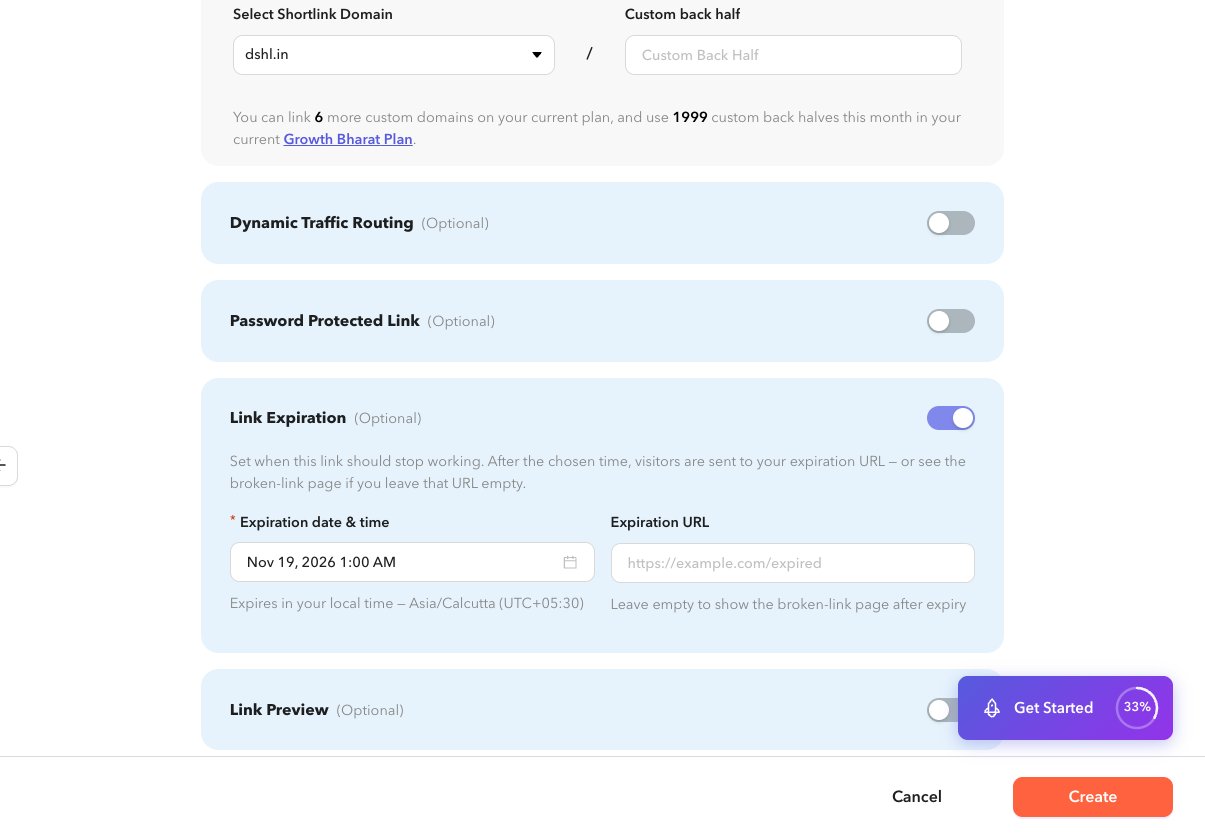
Expand Link Expiration, or edit with
section=expiration from the list expiration action.2
Enable expiration
Turn the section on and set the date and time (local timezone helper is shown in the form).
3
Optional expiration URL
Enter a URL to use after expiry. If you leave it blank, expired clicks follow the product default for expired links.
4
Save
Create or update the shortlink.