

Prerequisites
- At least one shortlink domain is available to your organisation (default Dashlink domain and any branded domains you verified).
- Custom back halves may be plan-gated.
Steps
1
Open create or edit
Go to Create Shortlink or edit an existing link.
2
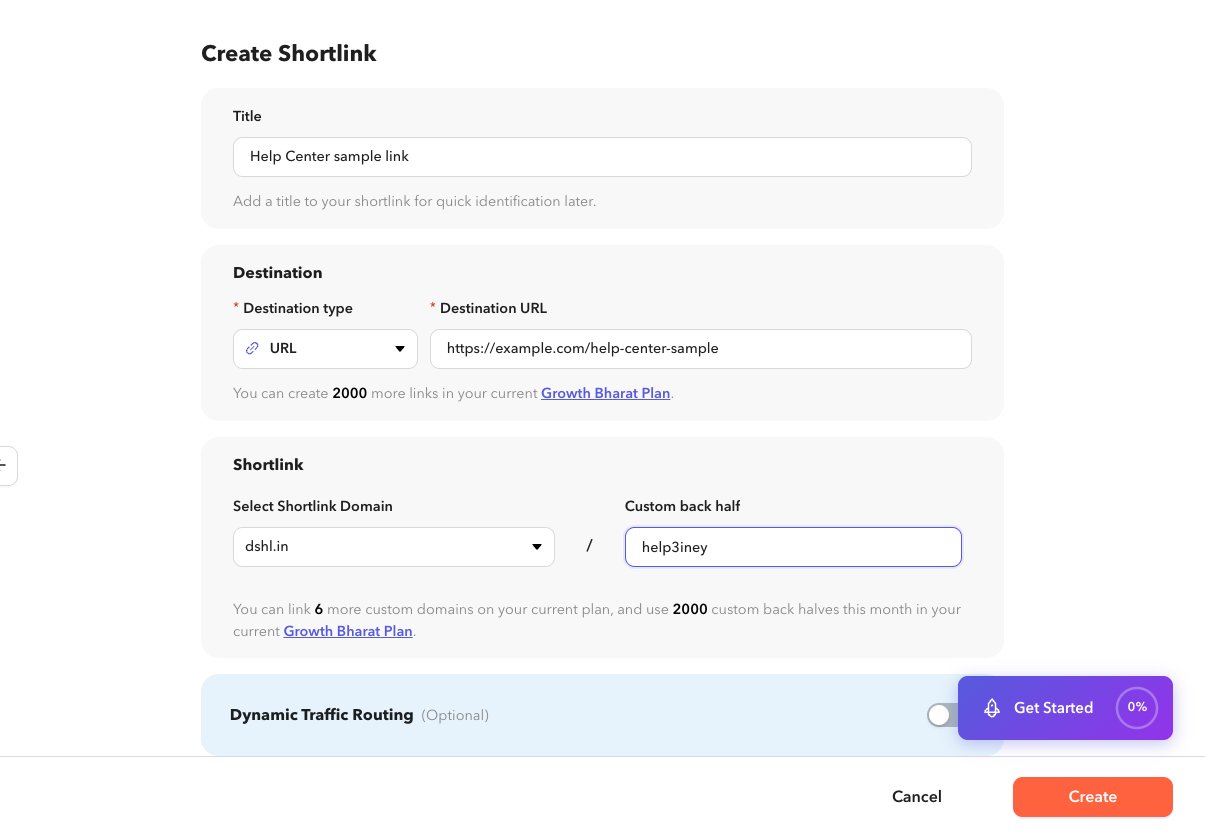
Select the domain
Under Shortlink, open Select Shortlink Domain and pick the host that should appear in the short URL.
3
Set the back half (optional)
Enter a custom path, or leave it blank to use a generated one. The live preview shows the full short URL.
4
Save
Create or update the link. If the back half is already taken on that domain, choose another value.
Related
- Create a shortlink
- Branded domains (API guides): Branded links