

Prerequisites
- Your plan includes dynamic routing.
- You are on create or edit shortlink (
/app/shortlinks/createor/app/shortlinks/edit?s=…§ion=dynamic_routing).
Steps
1
Enable Dynamic Traffic Routing
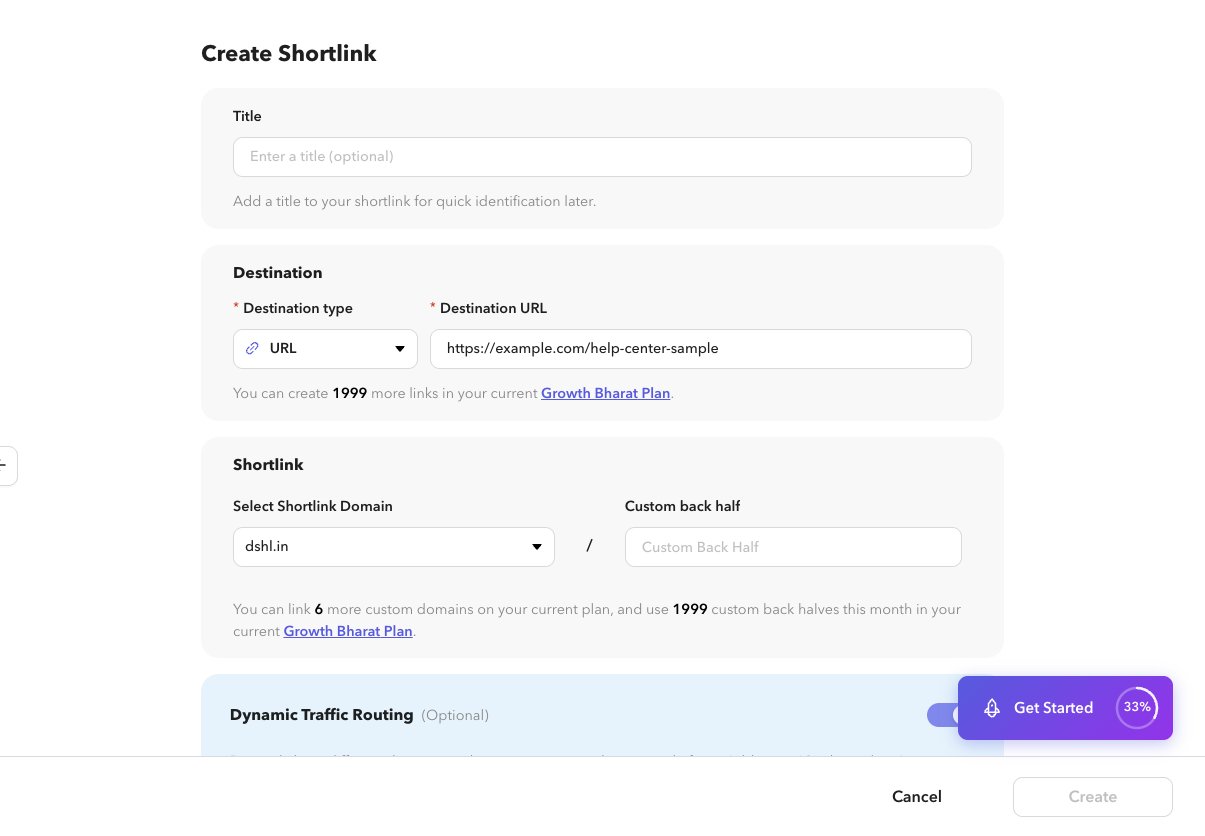
Open the Dynamic Traffic Routing section and turn it on.
2
Add a rule
Add a rule (up to 10). Choose a condition dimension (country, language, device/platform, browser, OS, or time fields), an operator (is / is not), and values.
3
Set the rule destination
Enter the alternate destination URL for that rule.
4
Order rules intentionally
Broader rules lower in the list only run if earlier rules do not match.
5
Save
Create or update the shortlink.
View rules from the list
On Shortlinks, open the routing action on a row to view rules read-only, then Edit to change them.Related
- Create a shortlink
- Shortlink analytics (routing breakdown when enabled)
- API: Routing rules